

Audit Lifecycle
Every audit in qportal moves through a defined set of statuses. Only certain transitions are allowed, ensuring data integrity and a clear audit trail.
Status Flow
Section titled “Status Flow”Draft ──► Planned ──► In Progress ──► Completed ──► Findings Published │ │ │ ▼ └──────────────┴──► (Reopen → back to Draft)Cancelled(from Draft or Planned only)Allowed Transitions
Section titled “Allowed Transitions”| Action | From Status | To Status | Who |
|---|---|---|---|
| Plan | Draft | Planned | Audit Manager |
| Start | Planned | In Progress | Audit Manager |
| Complete | In Progress | Completed | Audit Manager |
| Publish Findings | Completed | Findings Published | Audit Manager |
| Reopen | Planned, In Progress, or Findings Published | Draft | Audit Manager |
| Cancel | Draft or Planned | Cancelled | Audit Manager |
Note: Cancelled audits cannot be reopened. If an audit was cancelled by mistake, create a new one.
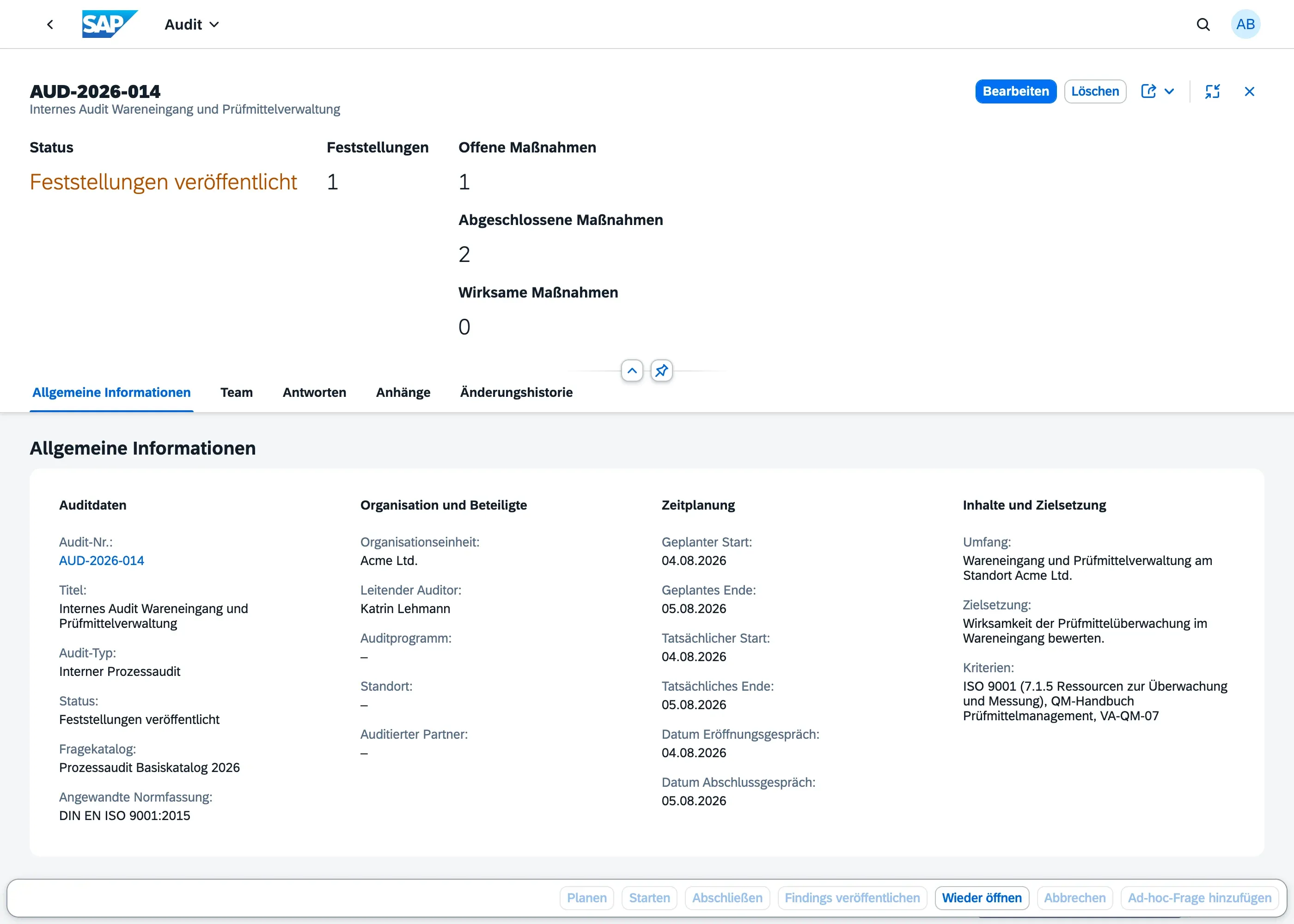
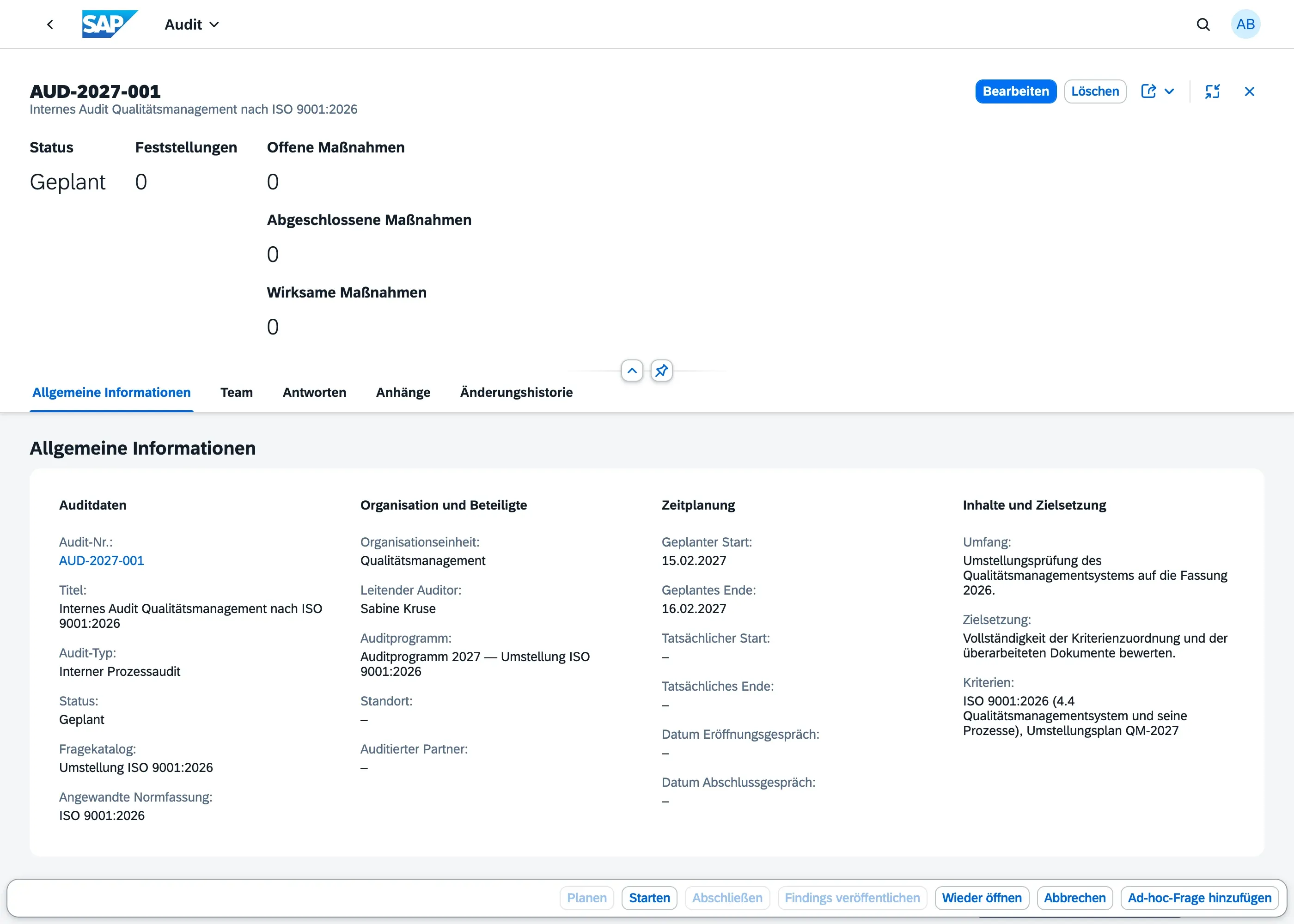
The action bar always shows every transition, but only those the current status allows are active. The same bar on an audit in Planned (Geplant) offers Start (Starten) and greys out Complete (Abschließen) and Publish Findings (Findings veröffentlichen):
What Changes at Each Step
Section titled “What Changes at Each Step”Draft → Planned
Section titled “Draft → Planned”- The audit is officially scheduled
- Team assignments and question catalog should be finalised before this step
Planned → In Progress
Section titled “Planned → In Progress”- Fieldwork can begin: auditors can now record question responses
- Findings can be created
In Progress → Completed
Section titled “In Progress → Completed”- Fieldwork is concluded; question responses are locked
- Findings remain editable during Completed — this is the review stage, where findings can still be adjusted before publication (see Finding Lifecycle)
- Action items remain open and active
Completed → Findings Published
Section titled “Completed → Findings Published”- Findings are formally published to stakeholders
- This is the final status for the audit content itself
Reopen (any → Draft)
Section titled “Reopen (any → Draft)”- Returns the audit to Draft for corrections
- Previously locked data becomes editable again
- Use sparingly — intended for corrections, not routine edits
What You Can Edit at Each Step
Section titled “What You Can Edit at Each Step”Which header fields you can change depends on the audit’s current status — this keeps earlier planning decisions traceable once fieldwork has started.
| Field(s) | Editable until |
|---|---|
| Audit number, Audit Type, Question Catalog | Draft only — these define the audit and shouldn’t change once responses exist |
| Title, Organizational Unit, Location, Audited Partner, Planned Start/End Date | Planned |
| Lead Auditor, Scope, Objective, Criteria | In Progress |
| Actual Start/End Date | In Progress |
| Opening Meeting Date, Closing Meeting Date | Completed |
| Everything else | Read-only from Completed onward |
If you try to change a field outside its editable window, the save fails with a message naming the field and the current status. If you need to correct something after the window has closed, use Reopen (see below) rather than working around it.
Who can edit, not just when
Section titled “Who can edit, not just when”The table above governs which fields are open at each stage — but who can use that window differs by role. Audit Manager can make direct edits to an audit record at any stage shown in the table. Auditor’s direct edits are limited to while the audit is In Progress — the fieldwork window — regardless of which fields would otherwise be open at other stages (e.g. an Auditor cannot edit the Title while the audit is still Planned, even though the field itself is open for editing at that stage). Outside In Progress, an Auditor can still trigger status-transition actions they’re permitted for (Start, Complete, Reopen, …), and can read the audit at any status — but for direct field edits at other stages, only Audit Manager can make the change.
Audit Team Locking
Section titled “Audit Team Locking”The audit team (team members and their roles) can still be changed while the audit is Draft, Planned, or In Progress — by convention, finalise it before fieldwork starts, but the system doesn’t hard-block edits until then. It becomes read-only once the audit reaches Completed (and stays locked through Findings Published/Cancelled) — team composition shouldn’t change retroactively once fieldwork has concluded. See Audit Team & Roles for how to assign team members.
Deleting an Audit
Section titled “Deleting an Audit”An audit can only be deleted while it’s in Draft or Planned status. Once it has moved to In Progress or beyond, delete is disabled — use Reopen if it needs correction instead.
Recording the Opening & Closing Meeting
Section titled “Recording the Opening & Closing Meeting”Good audit practice calls for a documented opening meeting at the start of fieldwork and a closing meeting once fieldwork concludes, where findings are presented to the audited area. The audit object page has an Opening Meeting Date and a Closing Meeting Date field for recording when these took place.
- Both fields are optional and don’t gate or block any status transition; editable through Completed (see “What You Can Edit at Each Step” above)
- Fill in the Opening Meeting Date once the kickoff discussion with the audited area has happened, typically around the time the audit moves to In Progress
- Fill in the Closing Meeting Date once findings have been discussed with the audited area, typically before or around Complete
- Use the Reschedule action to adjust planned start/end dates without changing the status (useful for drag-and-drop rescheduling in planning views)
- The audit number (
auditNo) is a free-text field you can use to reference external audit plans or numbering schemes