

8D Analysis
The 8D process (VDA Volume 8D) is the standard answer to a problem that reached a customer: a defined team works through eight disciplines, from immediate containment to formal closure, and the result can be handed over as a report.
In qportal, each discipline is a section on the analysis. There is no separate progress list to maintain — qportal derives how far you are from the content you have entered.
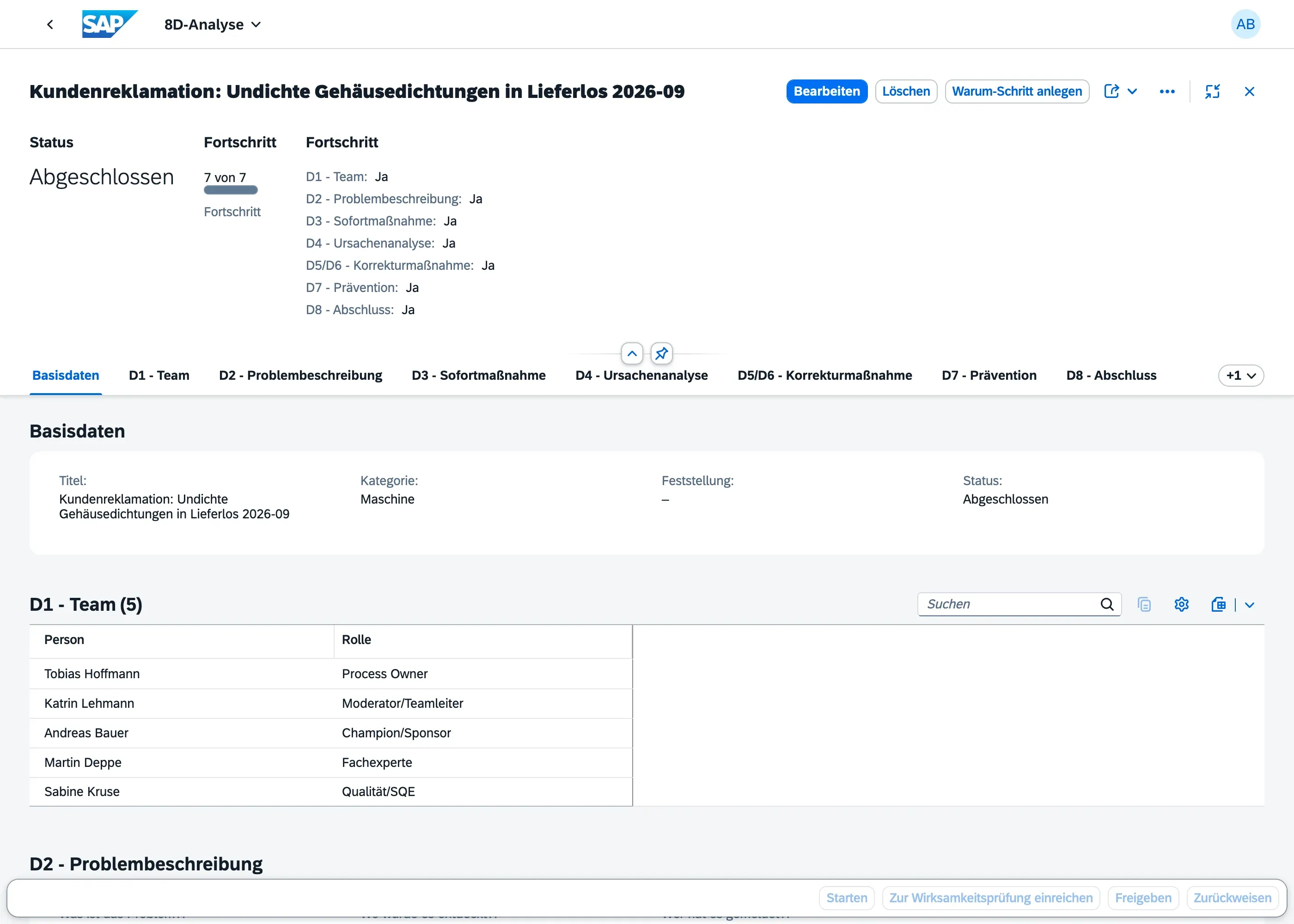
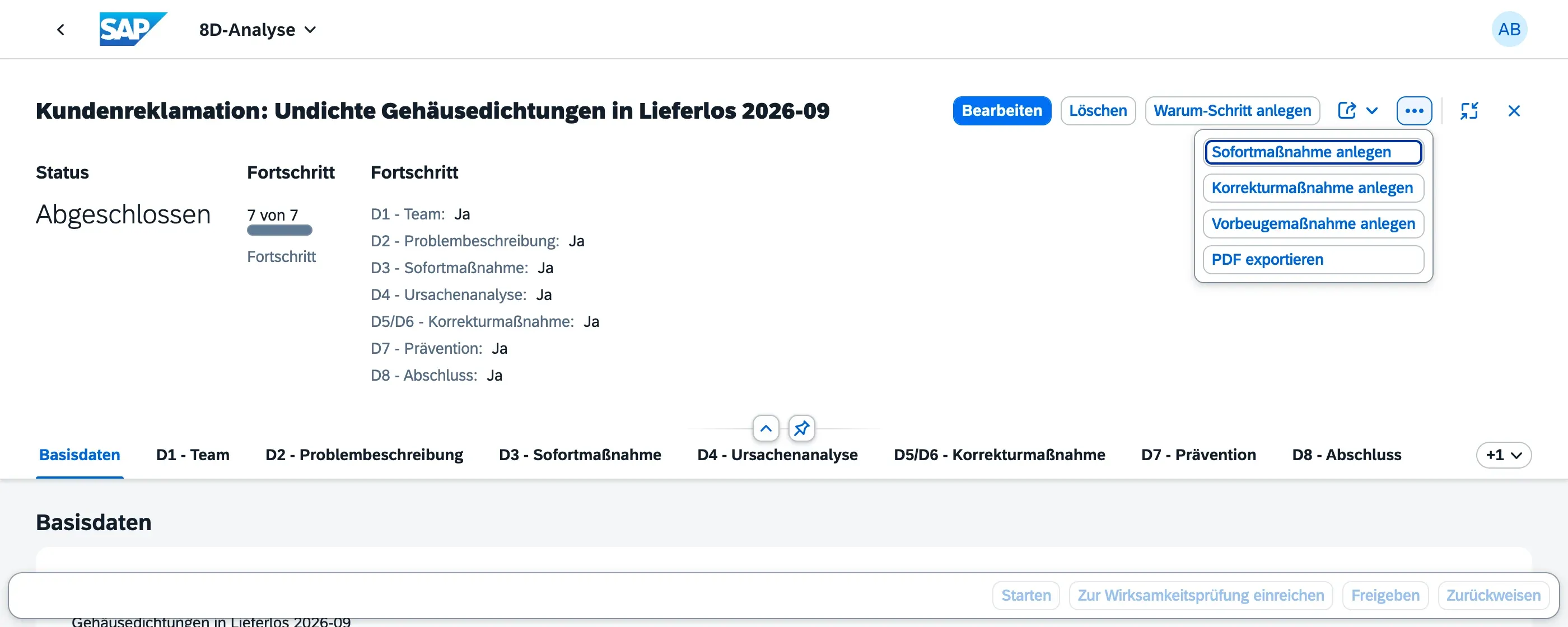
The Progress block in the header shows Yes or No per step. It updates as you work: add a team member and D1 flips to Yes, fill the problem description and D2 follows. Use it to see at a glance what is still open — and note that Submit for Verification stays unavailable until D1 to D7 are complete.
Starting an 8D
Section titled “Starting an 8D”Open the 8D Analyses app and choose Create, or start from a finding via Start Root-Cause Analysis and pick 8D as the method.
D1 — Team
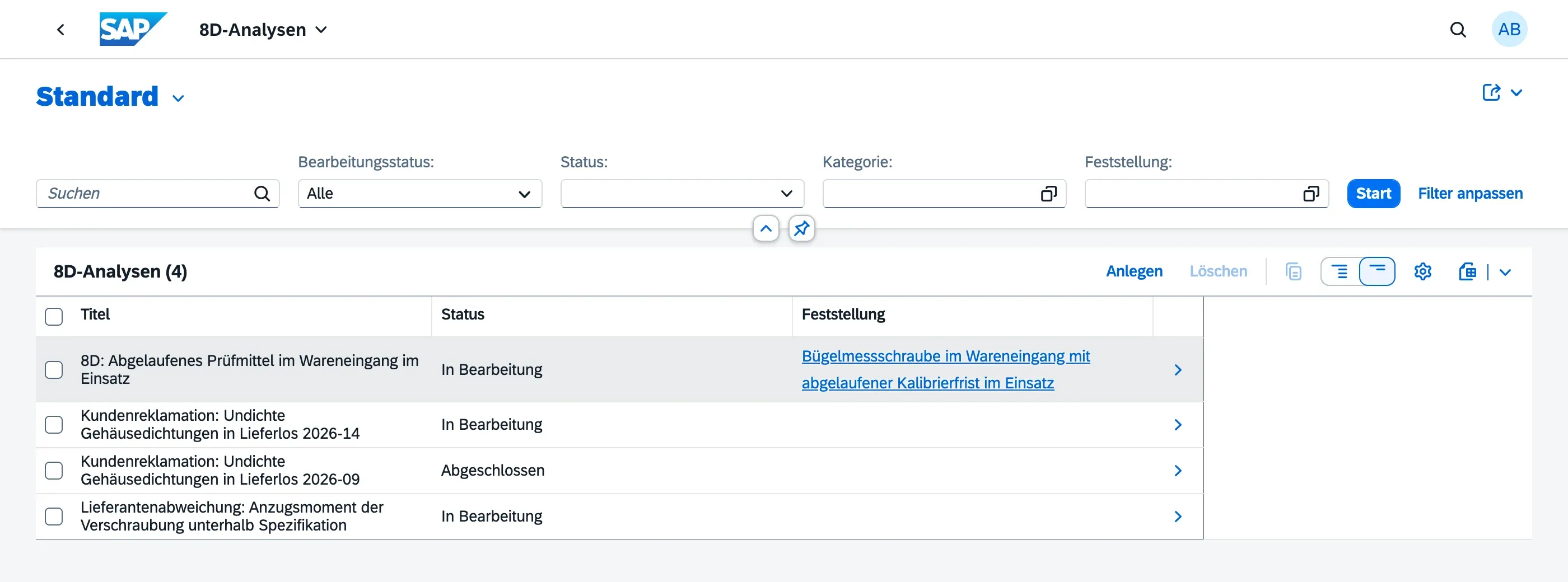
Section titled “D1 — Team”Add the people who will work on the problem, each with a role: Champion/Sponsor, Moderator/Team Lead, Process Owner, Subject Matter Expert, Quality/SQE, or Customer/Supplier (external).
Naming a moderator matters more than the size of the team. Four people with clear roles beat ten names on a list.
External participants — a supplier representative, for example — can be recorded here as a person so the team is documented completely. They cannot work in qportal themselves; there is no guest access at the moment.
D2 — Problem Description
Section titled “D2 — Problem Description”D2 is deliberately not a free-text box. Five structured questions force the description to be specific:
- What is the problem?
- Where was it detected?
- When did it occur?
- Who reported it?
- How many / what extent is affected?
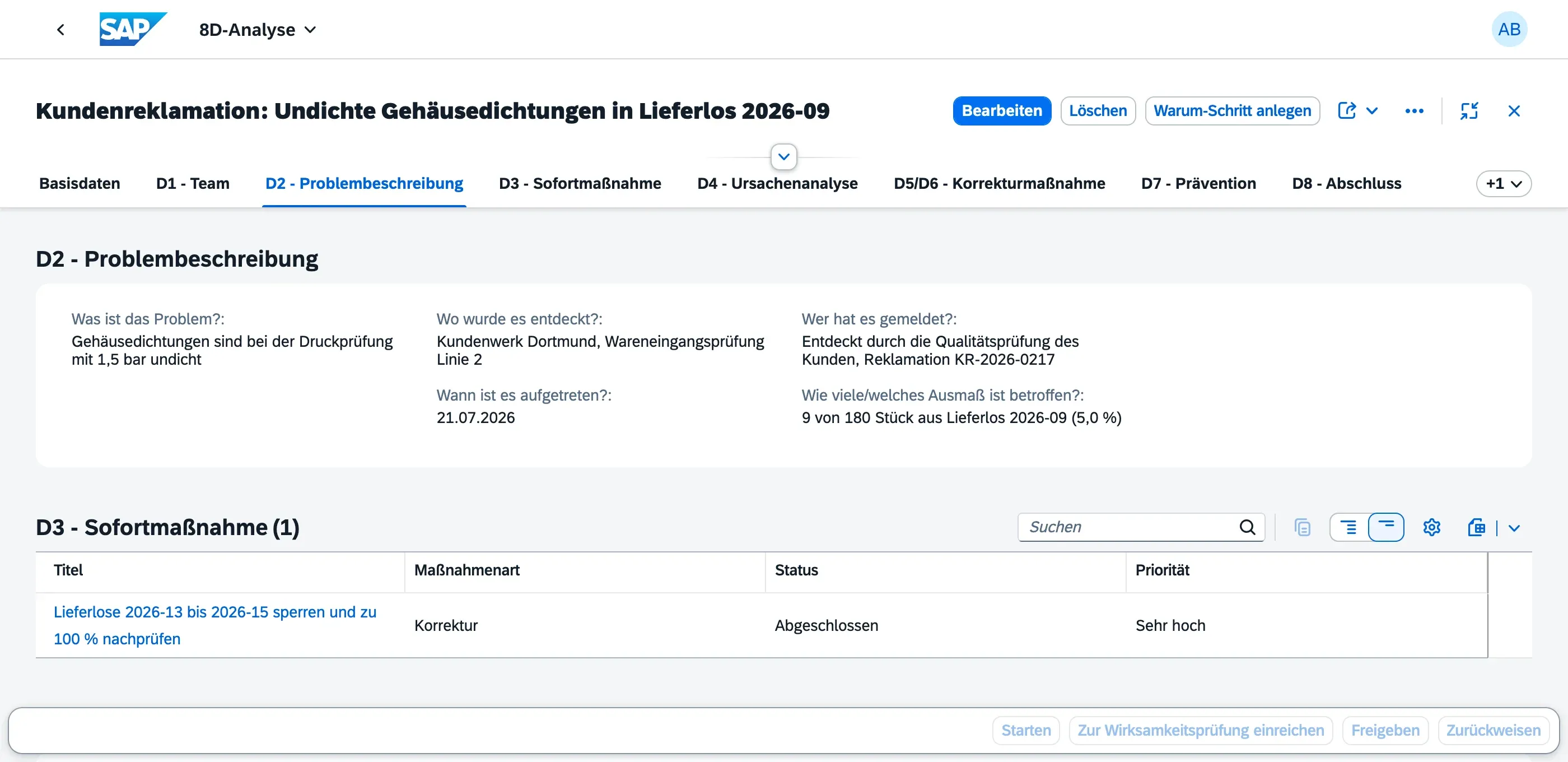
Numbers belong in the extent field: “14 of 240 units in delivery lot 2026-14 (5.8 %)” is a description a customer can verify. “Several parts affected” is not.
D3 — Immediate Containment Action
Section titled “D3 — Immediate Containment Action”Containment protects the customer while the cause is still unknown — sorting, blocking a delivery lot, switching to an alternative batch, 100 % inspection.
Choose Create Immediate Containment Action in the header to add one. It becomes a regular action item of type Correction, visible in My Actions and the Action Workbench, and it appears in this section with its current status.
D3 counts as complete once the containment action is closed.
D4 — Root Cause Analysis
Section titled “D4 — Root Cause Analysis”D4 asks for two chains, not one — the distinction VDA insists on and the one most analyses skip:
- Occurrence Cause Chain — why the defect happened
- Detection Cause Chain — why it wasn’t caught before it reached the customer
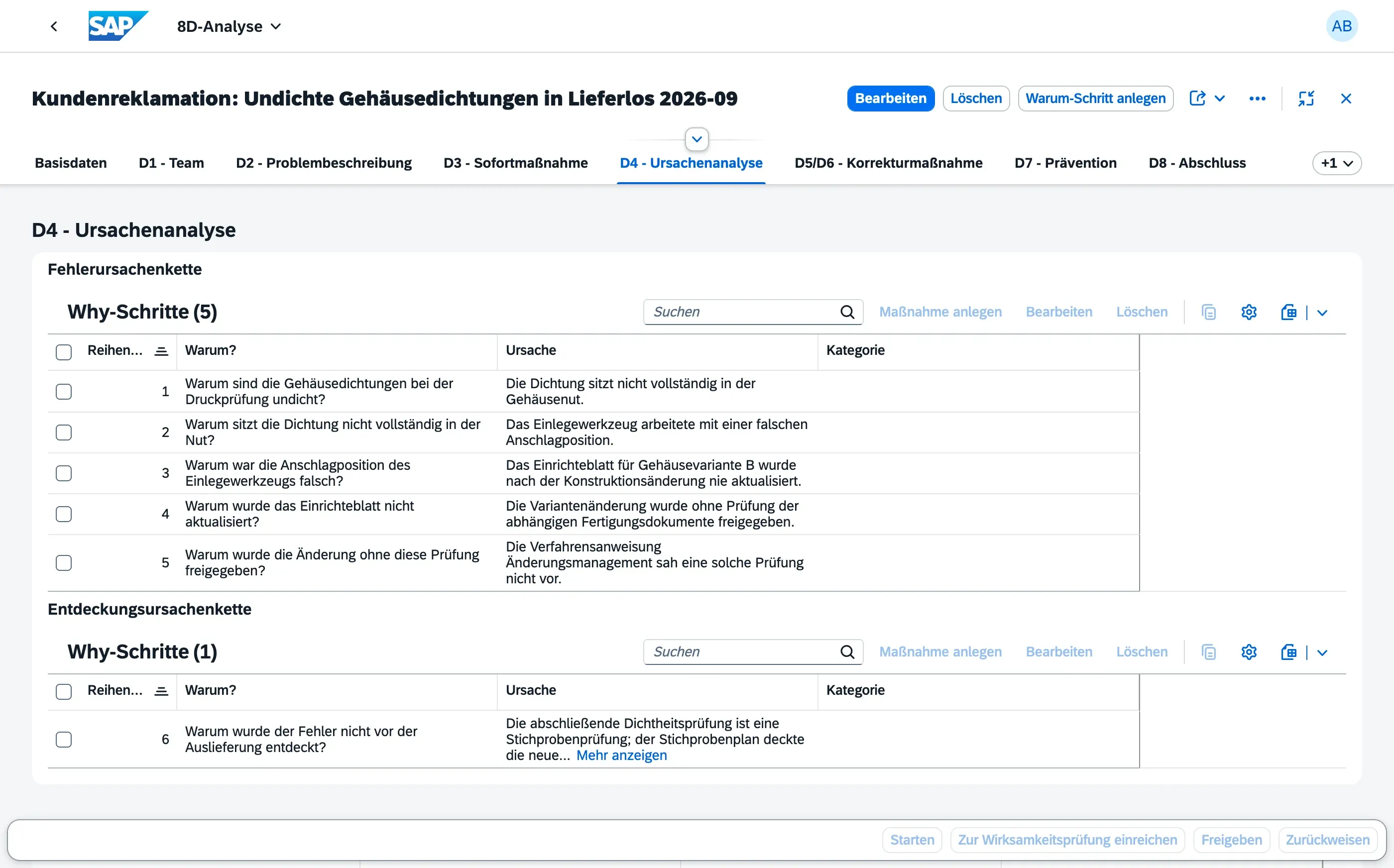
Both chains work exactly like a 5-Why analysis: choose Create Why-Step, then enter the question, the cause and the sequence number. A defect that escaped detection almost always has a second, independent cause on the inspection side — treating it as one problem is how the same escape happens again.
D5/D6 — Corrective Action
Section titled “D5/D6 — Corrective Action”D5 (plan the corrective action) and D6 (implement and verify it) share one section, because in qportal both are the same object at different stages of its lifecycle: choose Create Corrective Action from the header menu, and follow the action item’s own status from Open through In Progress to Verified.
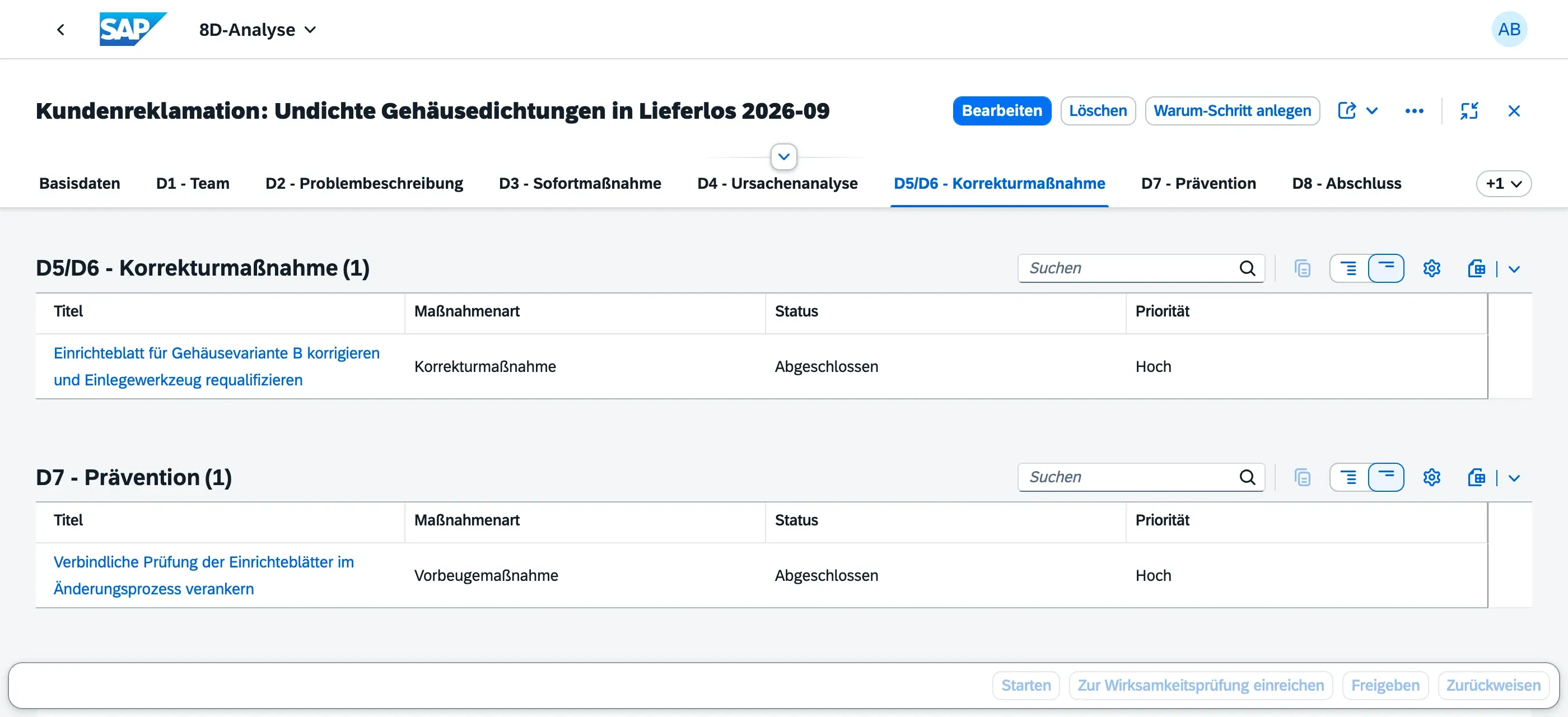
D5/D6 counts as complete once every corrective action has reached at least Verified — that is, the effect has been checked, not just the work done.
D7 — Prevention
Section titled “D7 — Prevention”D7 asks what keeps this class of problem from coming back elsewhere: a checklist entry, a changed release condition, an updated risk assessment. Choose Create Preventive Action from the header menu; the result is an action item of type Preventive Action.
If D7 only repeats D5, the analysis stopped one level too early — prevention is about the system, not about this one part.
D8 — Closure
Section titled “D8 — Closure”D8 records the formal sign-off: who closed the analysis, when, the Verification Note (the evidence that the measures worked) and Lessons Learned.
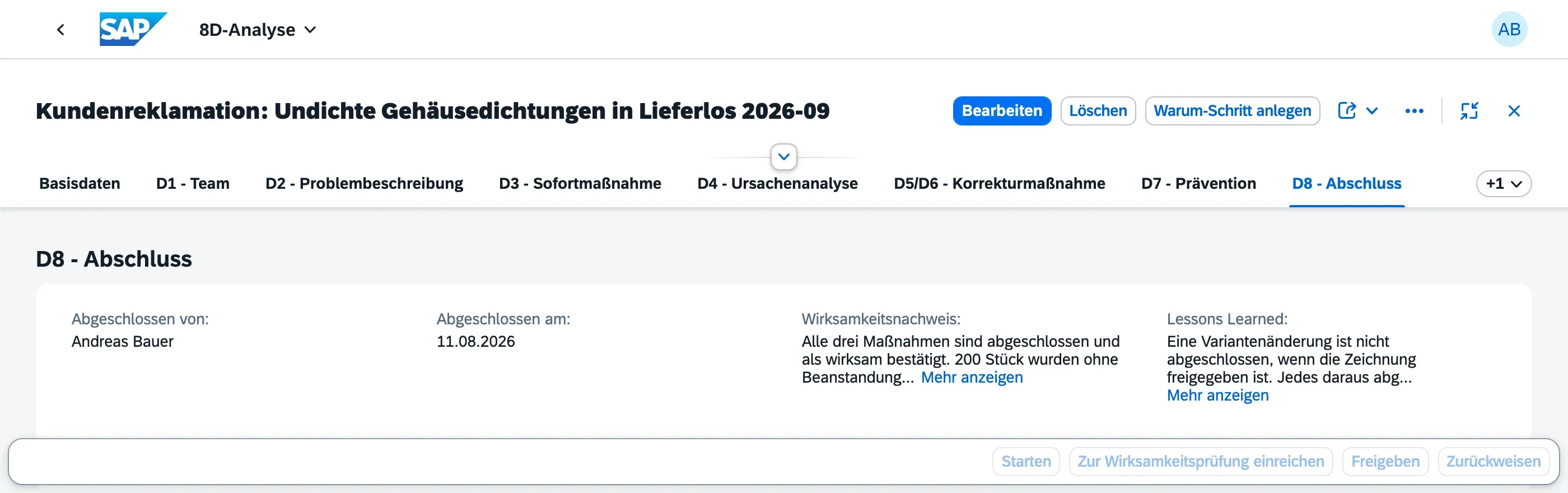
Closed By and Closed On are stamped by qportal when a Root Cause Manager approves the analysis — you don’t type them. See Analysis Lifecycle.
Exporting the report
Section titled “Exporting the report”Export PDF in the header menu produces a printable D0–D8 report of the whole analysis — the version you hand to a customer or file as evidence.
Next steps
Section titled “Next steps”- Analysis Lifecycle — statuses, verification gate, closure
- Action Items — where the measures from D3, D5/D6 and D7 are worked