
Creating & Classifying Findings
A finding documents a deviation, observation, or risk identified during an audit. Findings are linked to a specific question response in the audit’s question catalog and can have action items and file attachments.
Creating a Finding
Section titled “Creating a Finding”Findings can only be created when an audit is In Progress.
- Open the audit and navigate to the Question Responses section
- Open the question response where you identified an issue
- In the response, choose Add Finding
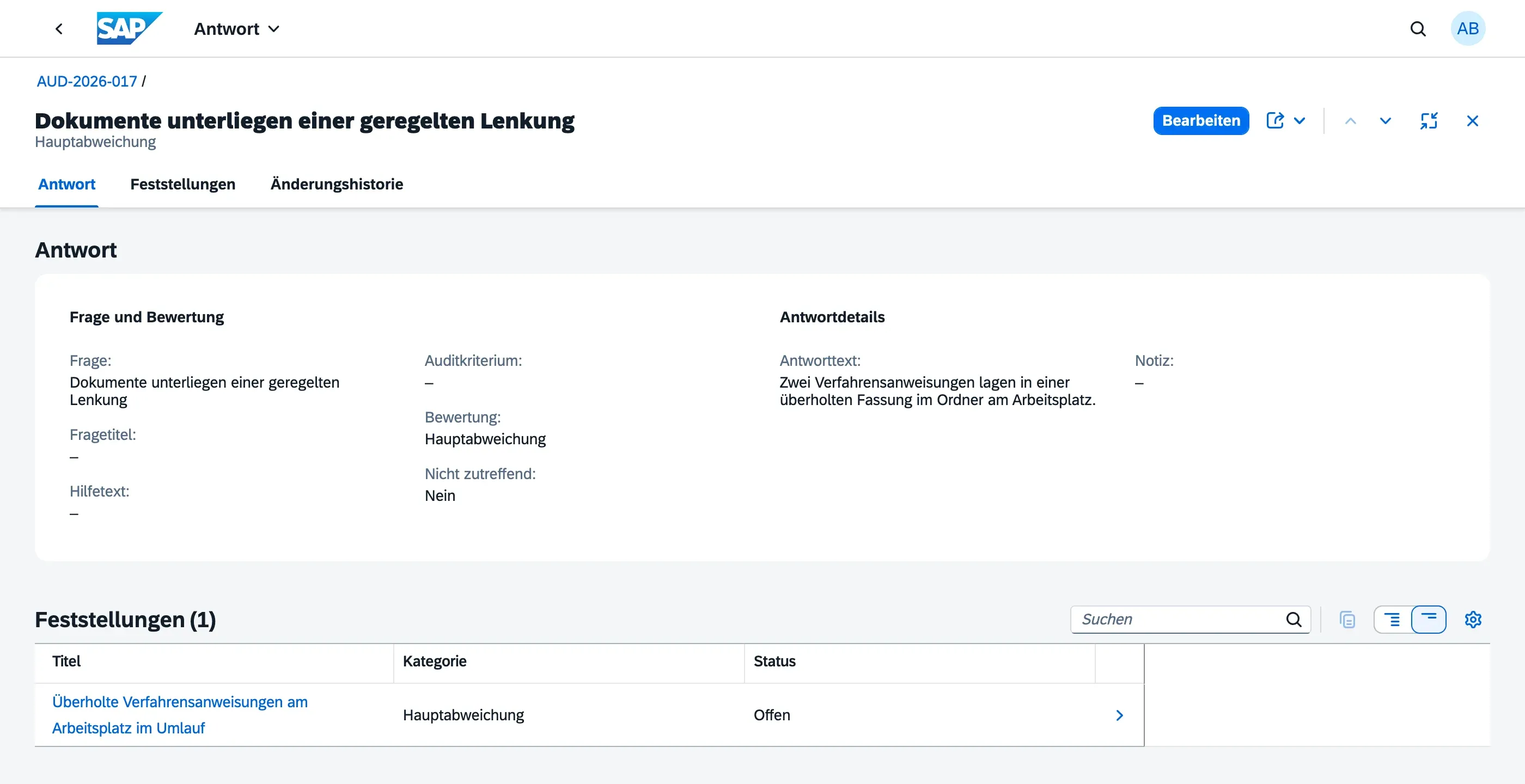
- Fill in:
- Title — brief summary of what was found
- Category — classifies the finding type (configured in Master Data)
- Severity (required) — ISO 9001 severity classification (see below); every finding is a deviation by definition, so a severity must always be selected
- Description — detailed explanation of the finding
- Root Cause — analysis of why the deviation occurred
- Audit Criteria — the specific norm clause or internal procedure the finding relates to, selected from the Audit Criteria master data (see Audit Criteria); if the underlying question already has an Audit Criteria set, this is pre-filled automatically but can be changed
- Responsible Person — person accountable for addressing this finding
- Due Date — deadline for resolution
Finding Severity (ISO 9001:2015)
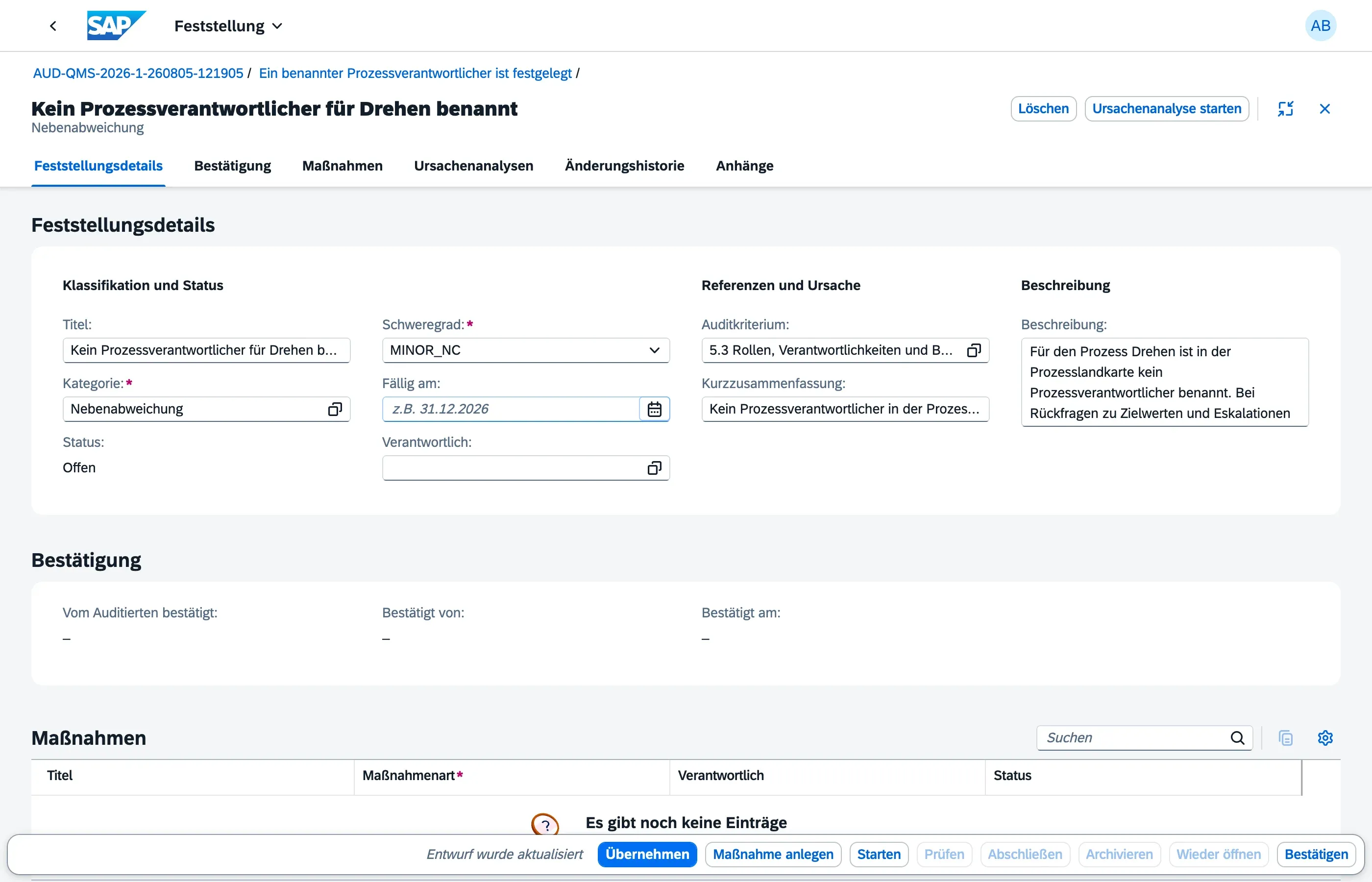
Section titled “Finding Severity (ISO 9001:2015)”A finding is by definition a deviation, so qportal uses an ISO 9001-aligned three-level severity classification:
| Severity | Meaning |
|---|---|
| Observation | Minor issue or improvement potential; not yet a nonconformity |
| Minor Nonconformity | Isolated failure to meet a requirement; limited impact |
| Major Nonconformity (Schwerwiegende Abweichung) | Systematic failure to meet a requirement; significant impact on the quality system |
If a question response is fully conformant, no finding is created for it in the first place — see Conducting Fieldwork for how question responses are classified.
The severity is separate from finding categories — your Master Data Admin configures categories as an additional classification layer (e.g. Process, Documentation, Infrastructure).
Attachments
Section titled “Attachments”You can attach evidence files (photos, documents, records) directly to a finding using the Attachments section. These serve as audit evidence for the identified deviation.
Assigning Action Items
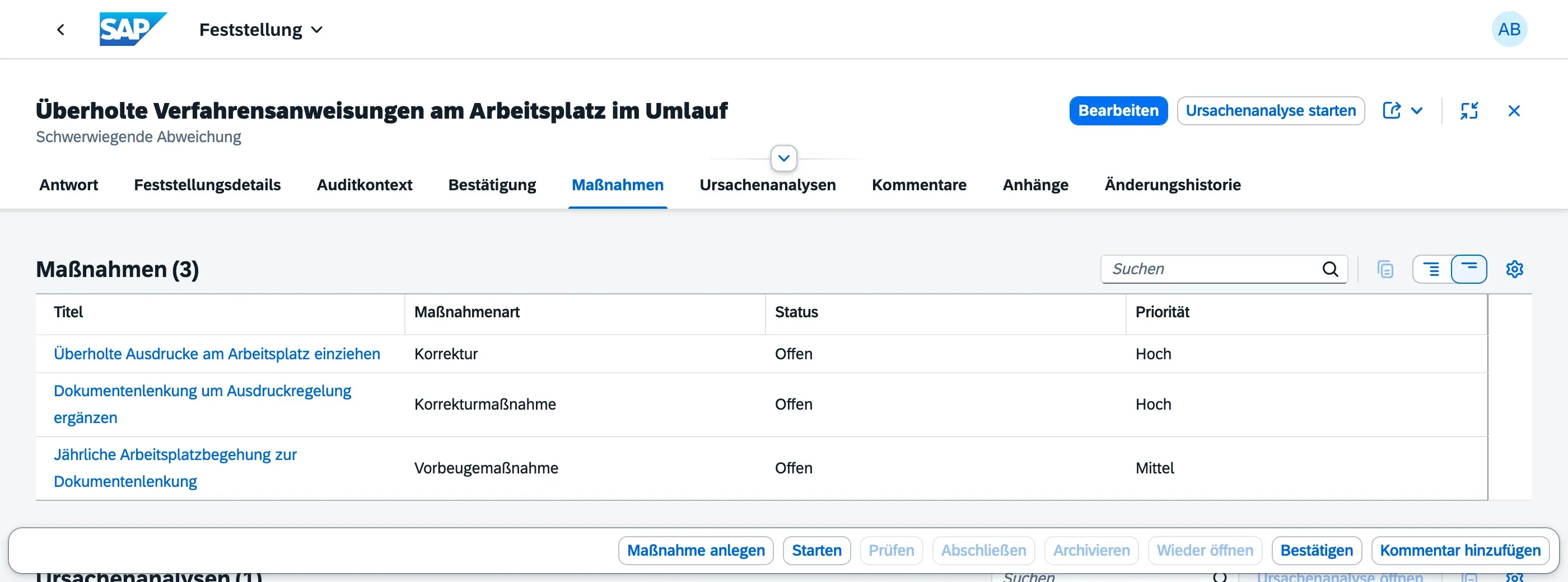
Section titled “Assigning Action Items”From a finding, you can create action items to track corrective measures:
- In the finding, open the Action Items tab
- Choose Create Action Item
- Fill in the title, responsible person, due date, and optionally a description and priority
The action item appears in the Action Items module for the assigned person.
Starting a Root Cause Analysis
Section titled “Starting a Root Cause Analysis”An action item fixes what went wrong; a root cause analysis works out why it happened. Choose Start Root-Cause Analysis in the finding’s header to open a structured analysis directly from the finding:
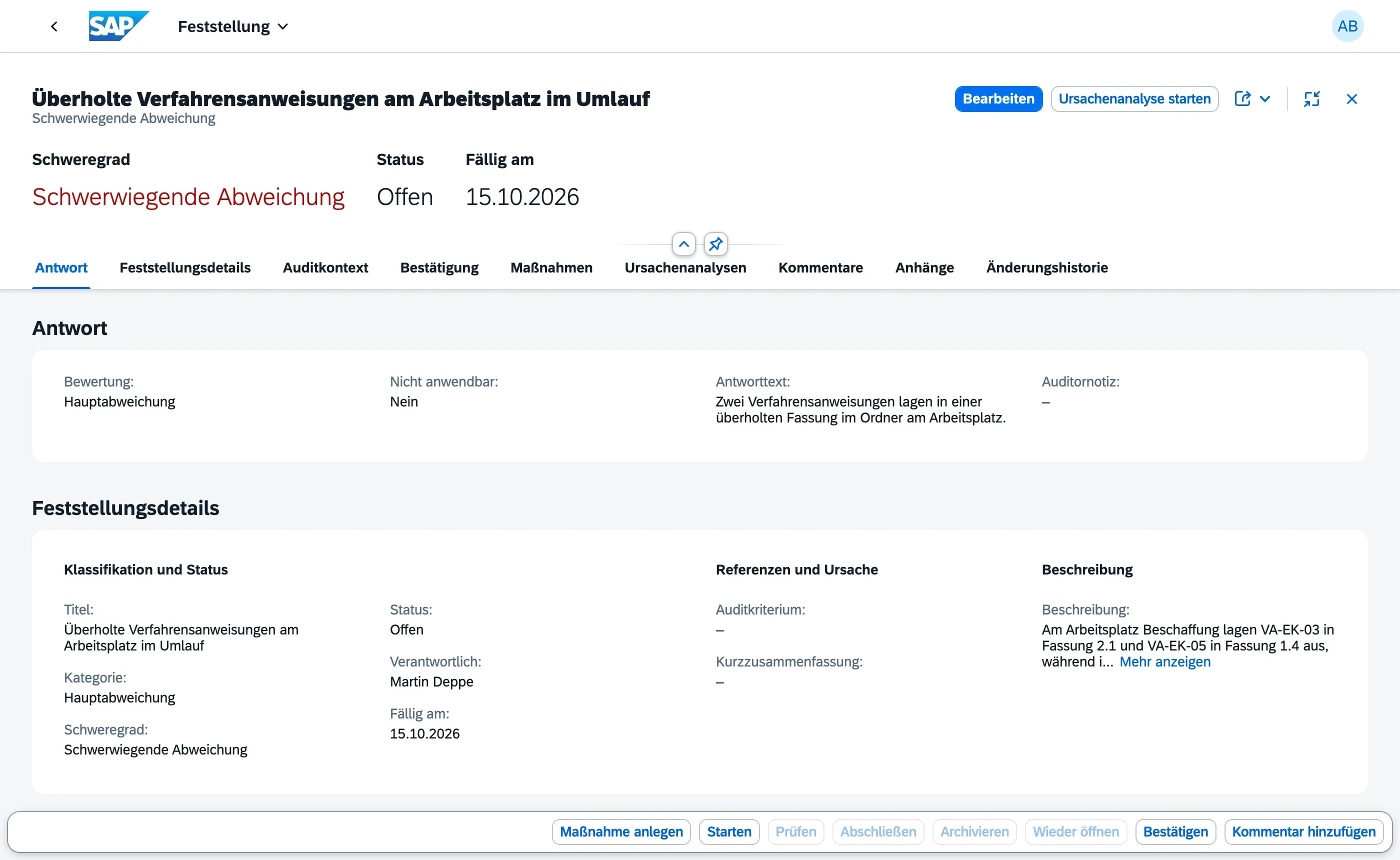
- Pick the method — 5-Why for a quick linear investigation, 8D for a full team process (see choosing between them)
- Give the analysis a title and, optionally, a description of what needs to be explained
- Choose OK — qportal creates the analysis and takes you straight into it
The finding keeps a link to every analysis started from it, in its Root-Cause Analyses section:
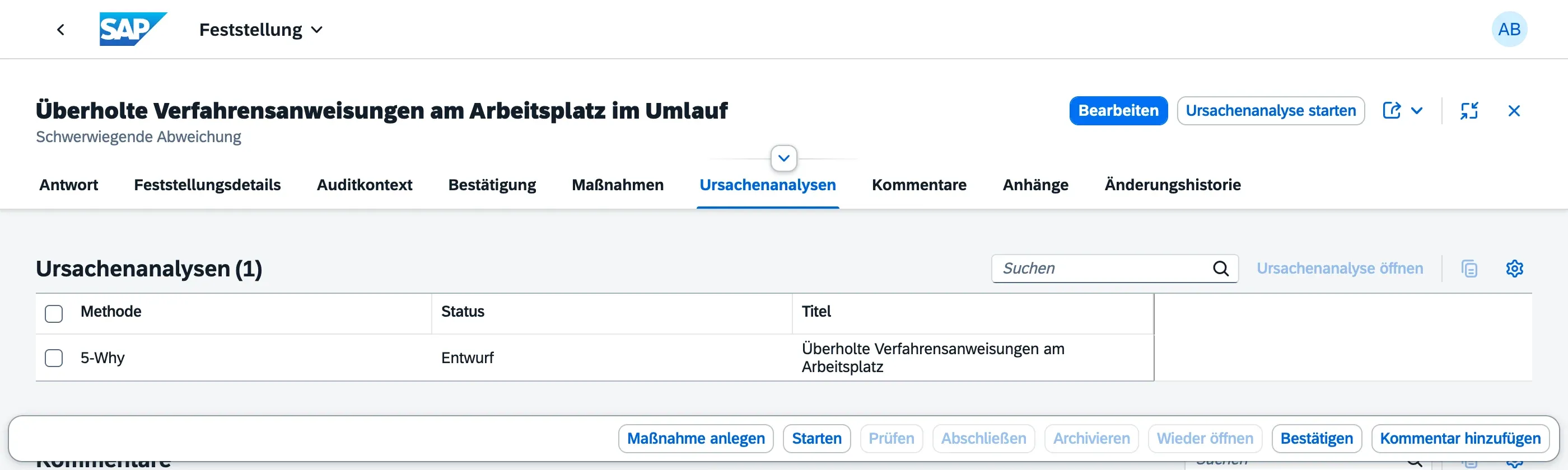
Starting an analysis is not mandatory, but when you move a finding to In Progress without one, qportal reminds you — ISO 9001:2015 (10.2.1 b) expects the cause to be evaluated, not just the symptom fixed. The reminder is a note, not a block.
Next Steps
Section titled “Next Steps”- Finding Lifecycle — status flow from Open to Archived
- Findings Overview — monitor findings across all audits
- Root Cause Analysis — investigate why a finding happened