

Navigating qportal
qportal follows the same navigation and page patterns in every module, so once you’re familiar with one area, the others feel familiar too.
The Launchpad
Section titled “The Launchpad”After logging in, you land on the Fiori Launchpad — a tile-based start page. Tiles are grouped by area: Audit Execution (audits, audit programs, findings, analytics), Action Items, Root Cause Analysis, Master Data and Administration. Which tiles you see depends on your assigned role and on the modules your organization has subscribed to (see Tenant Setup & Subscription).
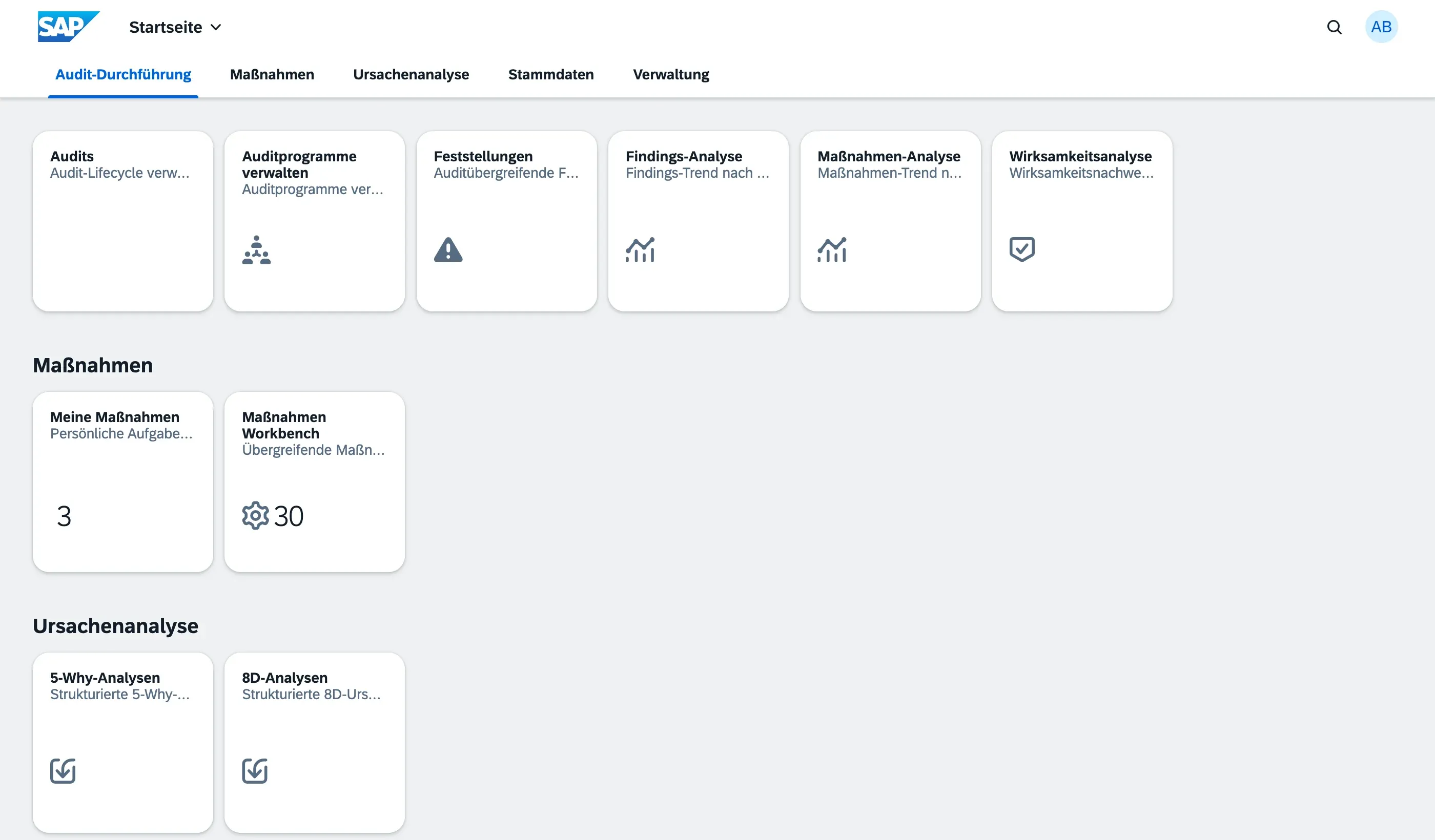
Click a tile to open the corresponding app.
List and detail pages
Section titled “List and detail pages”Most modules follow the same two-screen pattern:
- List page — shows all records you have access to, with a filter bar at the top and sortable columns. Use Adapt Filters to show or hide filter fields, and View Settings (gear icon) to show, hide, or reorder columns.
- Detail page — opens when you click a row. Shows all fields for that record, organized into sections, plus related information such as attachments and change history.
Some detail pages (like Findings Overview) open in a split-screen view, keeping the list visible on the left while you view or edit a record on the right.
Draft editing
Section titled “Draft editing”Many objects in qportal (Audits, Audit Programs, Question Catalogs, Findings, Action Items) use draft editing: while you’re creating or editing a record, your changes are saved as a draft and are only visible to you until you choose Save to finalize them, or discard the draft to cancel. This lets you work on a record over multiple sessions without affecting other users.
Change History
Section titled “Change History”Key objects (Audits, Question Responses, Findings, Action Items) automatically track every change — field edits and status transitions alike. Scroll to the bottom of a detail page to find the Change History section, showing who changed what and when.
Attachments
Section titled “Attachments”Audits, Findings, and Action Items each have their own Attachments section on the detail page, letting you upload supporting files — photos, documents, evidence of completion, and so on. Attachments are scoped to the record they’re uploaded to; an attachment on a finding is separate from attachments on its parent audit or on a linked action item.
Next steps
Section titled “Next steps”- Roles & Permissions — what you can see and do based on your role
- Audits — start exploring the first module